Showing posts with label Windows. Show all posts

Tuesday, December 16, 2025

Running Ubuntu on Windows 11 with WSL

Windows Subsystem for Linux (WSL) makes it easy to run a full Linux environment directly on Windows 11. This is great for developers and power users who want Linux tools (e.g. grep, sed, awk, tmux) alongside Windows apps.

This is how you can install Ubuntu on Windows 11:

  1. Open PowerShell in administrator mode by right-clicking and selecting "Run as administrator", run the wsl --install command, and then restart your machine.
  2. Run wsl --list --online to list the distributions that can be installed, as shown below:
    PS > wsl --list --online
    
    The following is a list of valid distributions that can be installed.
    Install using 'wsl.exe --install <Distro>'.
    
    NAME                            FRIENDLY NAME
    AlmaLinux-8                     AlmaLinux OS 8
    AlmaLinux-9                     AlmaLinux OS 9
    AlmaLinux-Kitten-10             AlmaLinux OS Kitten 10
    AlmaLinux-10                    AlmaLinux OS 10
    Debian                          Debian GNU/Linux
    FedoraLinux-43                  Fedora Linux 43
    FedoraLinux-42                  Fedora Linux 42
    SUSE-Linux-Enterprise-15-SP7    SUSE Linux Enterprise 15 SP7
    SUSE-Linux-Enterprise-16.0      SUSE Linux Enterprise 16.0
    Ubuntu                          Ubuntu
    Ubuntu-24.04                    Ubuntu 24.04 LTS
    archlinux                       Arch Linux
    kali-linux                      Kali Linux Rolling
    openSUSE-Tumbleweed             openSUSE Tumbleweed
    openSUSE-Leap-16.0              openSUSE Leap 16.0
    Ubuntu-20.04                    Ubuntu 20.04 LTS
    Ubuntu-22.04                    Ubuntu 22.04 LTS
    OracleLinux_7_9                 Oracle Linux 7.9
    OracleLinux_8_10                Oracle Linux 8.10
    OracleLinux_9_5                 Oracle Linux 9.5
    openSUSE-Leap-15.6              openSUSE Leap 15.6
    SUSE-Linux-Enterprise-15-SP6    SUSE Linux Enterprise 15 SP6
    
  3. Run wsl --install Ubuntu (or another distro of your choice)

That’s it! Ubuntu is now running on your Windows 11 system.

You can now open a Ubuntu terminal by running the wsl command.

You can access your Windows files from /mnt/c. You can also install Ubuntu packages using apt.

Friday, July 10, 2020

Compute MD5 Checksum Hash on Windows and Linux

Use the following commands to print out the MD5 hash for a file.

On Windows:

> CertUtil -hashfile myfile.txt MD5
MD5 hash of file myfile.txt:
76383c2c0bfca944b57a63830c163ad2
CertUtil: -hashfile command completed successfully.

On Linux/Unix:

$ md5sum myfile.txt
76383c2c0bfca944b57a63830c163ad2 *myfile.txt

Wednesday, August 25, 2010

Software Inventory of my Windows Machine

As I will be leaving my computer soon, I have decided to make a quick list of useful applications currently installed:
CategoryNameDescription
DatabaseAqua Data StudioDatabase Query Tool
DatabaseJaySQLJDBC Database Tool
DatabaseToadOracle Database Tool
DevAntBuild Tool
DevAxis 1.4Web Services Engine
DevAxis 2Web Services Engine
DevChainsawLog Viewer
DevCoberturaCode Coverage Tool
DevEclipseIDE
DevGroovyProgramming Language
DevGWTGoogle Web Toolkit
DevHermesJMSJMS Browser
DevHSQLDBJava Database Engine
DevJADJava Decompiler
DevJavaProgramming Language
DevMavenProject Build Tool
DevPerlProgramming Language
DevPuTTySSH Client
DevPython 2.6Programming Language
DevSciTESource Code Editor
DevsoapUIWeb Service Caller
DevSQLiteSQL database engine
DevTomcatServlet Engine
DevTortoiseCVSCVS Client
DevWinMergeDifferencing and Merging Tool
Devxmlbeans-2.4.0XML to Java type binding
EditorAltova XML SpyXML Editor
EditorEmacs 22.3Text Editor
EditorTextPad 4Text Editor
PerformanceCachemanXPWindows Tuneup Utility
PerformanceCCleanerPC Cleaner
PerformanceDefragglerDisk Defragmenter
PerformanceHijackThisSystem Scanner
ProductivityAlt-Tab Task SwitcherMS Powertoys
ProductivityCalculator PowertoyMS Powertoys
ProductivityClipXClipboard History Manager
ProductivityCmdHere PowertoyMS Powertoys
ProductivityLClockClock
ProductivityPassword SafePassword Manager
ProductivityProcessExplorerTask Manager
ProductivityPsToolsWindows Tools
ProductivitySlickRunQuick Application Launcher
ProductivityTaskixReorder taskbar items
ProductivityTweak UIMS Powertoys
ProductivityUnxUtilsGNU Utilities for Windows
Productivityxplorer² liteWindows File Manager
UtilitiesConvert Image To PDFPDF Converter
UtilitiesdoPDF 7PDF Converter
UtilitiesFoxitPDF Reader
UtilitiesWinRARArchive Manager
UtilitiesxmltidyTextPad addon
WebMozilla FirefoxWeb Browser
WebPidginInstant Messenger
And, ofcourse, browsing wouldn't be the same without my Firefox addons:
Firefox Addons
Adblock Plus
All-in-One Sidebar
British English Dictionary
Cache Status
Colorful Tabs
Delicious Bookmarks
Download Statusbar
DownThemAll!
dragdropupload
FaviconizeTab
Firebug
Fission
Flashblock
Forecastfox
FoxClocks
Greasemonkey
Mouse Gestures Redox
Tab Mix Plus
Tab Preview
Ubiquity
URL Fixer
If you think you have better alternatives for any of the applications above, please write a comment!

Saturday, June 12, 2010

Mounting a Windows Hard Drive on Linux

Today, I had problems with my Windows hard drive. The operating system (XP) refused to start up and was complaining about corrupt system files. I wanted to back up my files in case things got worse. Luckily, I have a USB external hard drive enclosure and an Ubuntu Linux netbook so this is what I did:
  • I took out the hard drive from my Windows laptop.
  • I inserted it into my Akasa Integral External Enclosure and plugged it via USB into my Ubuntu netbook.
  • Ubuntu wasn't about to mount it automatically and gave me an error saying that the hard drive had problems and that I should "force" it to mount using a command.
  • I opened a terminal and typed the following commands to mount the disk manually:
  • $ sudo mkdir /media/disk
    $ sudo mount -t ntfs /dev/sdb1 /media/disk -o force
    $ cd /media/disk
    
  • I was then able to browse the contents of the Windows drive and back up important files.
  • Finally, I unmounted the drive as follows:
  • $ sudo umount /dev/sdb1
    

Monday, December 28, 2009

Add Shutdown Icon to Desktop

Today, I added a shutdown icon to my Dad's Windows XP desktop, to make it easier for him to turn off the computer. This is how you can do it:
  • Right-click on the desktop and choose New > Shortcut.
  • Type shutdown.exe -s -t 00 in the location box and press Next.
  • Type Turn off computer as the name of the shortcut and then press Finish.
  • Right-click the new icon that has appeared on the desktop and select Properties.
  • Click the Change Icon... button on the Shortcut tab.
  • Type %SystemRoot%\system32\SHELL32.dll in the location box and pick the Shutdown icon, which looks like a red square containing a circle with a vertical line.
Now, you can shutdown your computer by simply clicking the "Turn off computer" icon on your desktop, instead of going via the Start menu.

Tuesday, April 28, 2009

Setup Samba on Ubuntu

Here is a quick guide to setting up a Samba share on Ubuntu Linux.

Install the package

sudo apt-get install samba smbfs
Edit smb.conf
Open the samba configuration file in your favourite editor, change security to user and add a username map.
sudo vi /etc/samba/smb.conf
# "security = user" is always a good idea. This will require a Unix account # in this server for every user accessing the server. See # /usr/share/doc/samba-doc/htmldocs/Samba3-HOWTO/ServerType.html # in the samba-doc package for details. security = user username map = /etc/samba/smbusers
Create a samba user
sudo smbpasswd -a fahd
Add the new user to the smbusers file
The format is "unix username" = "samba username".
sudo vi /etc/samba/smbusers
fahd = fahd
Share home directory
Make the following changes to smb.conf in order to share your home directory over samba and make it writable.
sudo vi /etc/samba/smb.conf
#======================= Share Definitions ======================= # Un-comment the following (and tweak the other settings below to suit) # to enable the default home directory shares. This will share each # user's home directory as \\server\username [homes] comment = Home Directories browseable = no # By default, the home directories are exported read-only. Change the # next parameter to 'no' if you want to be able to write to them. read only = no # By default, \\server\username shares can be connected to by anyone # with access to the samba server. Un-comment the following parameter # to make sure that only "username" can connect to \\server\username # This might need tweaking when using external authentication schemes valid users = %S
Connecting to the samba
Now you should be able to map a drive on windows using the following share format: \\ubuntumachine\username. The first time you will be prompted for a username and password.

Restarting samba

sudo /etc/init.d/samba restart

Monday, March 26, 2007

Windows XP Performance Tips

WINDOWS DISK INDEXING
This is a performance tip that I strongly recommend you implement. The Windows Disk Indexer constantly indexes all files on your machine to allow for faster searching using the Windows Search function for example. Since most people don't search their machine very often, having Disk Indexing enabled provides a performance hit for no good reason, and also increases fragmentation. Follow these steps to turn off the Windows Disk Indexer to improve hard drive performance and responsiveness:
1. Go to Windows Explorer, right-click on your hard drive name (e.g. C:) and select Properties.
2. Untick the 'Allow Indexing Service to index this disk for fast file searching'.
3. Select 'Apply changes to [Drive letter]\, subfolders and files' in the subsequent prompt.
4. Your system will now go through and remove all indexing on existing files, and not index any new or moved files in the future - this will speed up drive read/writes and general responsiveness. Ignore any 'errors' which are shown, this occurs simply because some files are in use or protected and can't have their properties changed to remove indexing - this is normal.

Make sure you also disable the 'Indexing Service' service as it is no longer necessary when disk indexing is removed from your hard drive.

DEFRAGMENTATION
I strongly suggest you get into the habit of defragmenting often, specifically after you delete or add large files or install software.

PREFETCH
[HKEY_LOCAL_MACHINE\SYSTEM\CurrentControlSet\Control\Session Manager\Memory
Management\PrefetchParameters]
EnablePrefetcher=3

I personally leave the Prefetcher registry setting above at its default of 3, and set the Task Scheduler service to Disabled. This means the prefetcher won't create application prefetch files under the Window\Prefetch directory. I also clear all out existing prefetch (.PF) files in that directory. I have found that this provides for the fastest Windows bootup time.

CONTROL PANEL > SYSTEM

> ADVANCED > PERFORMANCE SETTINGS
For fastest performance, I recommend deselecting everything except 'Use visual styles on windows and buttons' and 'Use drop shadows for icon labels on the desktop'. That will reduce usage of system resources for graphical effects, while still retaining the majority of Windows XP's trademark appearance.

> ADVANCED > PERFORMANCE SETTINGS > ADVANCED > VIRTUAL MEMORY


This is where you can set the size of your pagefile. To determine the optimal pagefile size you should ideally see how much memory your most memory intensive programs use and then set the pagefile to comfortably accommodate this.

Before setting a new pagefile size, first clear your existing pagefile. To do this select the 'No Paging File' option and click the Set button, then reboot your system. This step does two things: first it deletes the pagefile, fixing any potential pagefile corruption which can occur after a bad shutdown (remember this tip for future troubleshooting purposes); and secondly it ensures that any new pagefile you create will start off as a single unfragmented contiguous block on your hard drive for optimal performance, which will remain unfragmented in the future. Note that if you have any problems booting up into Windows due to a lack of a pagefile during this step, enter Windows in Safe Mode (See Backup & Recovery section) and continue the setup procedures for Virtual Memory from there.

Here is a simple general recommendation which is both safe to use on all systems, regardless of how much RAM you have, and provides good performance:
Set the Initial and Maximum pagefile sizes to 2560MB each - i.e. allocate 2.5GB for the pagefile. Whatever you do, don't set a zero pagefile.

> ADVANCED > STARTUP & RECOVERY SETTINGS
For a system with a single operating system, select '"Microsoft Windows XP [Home/Professional]" /fastdetect' in the list presented. If you only have one operating system, or you don't want to select a different operating system each time you boot up, untick the 'Time to display list of Operating Systems' option.

Under the 'System failure' section untick all three options for optimal performance, and the 'Write Debugging Information' option should be set to None. That way if you run into problems you'll see the error displayed (usually a Windows Blue Screen of Death (BSOD) message) and your system won't automatically reboot. At the same time you won't get lots of logfiles and dumpfiles of the event cluttering up your hard drive.

> ADVANCED > ERROR REPORTING
Click the Error Reporting button and select 'Disable Error Reporting' and tick 'But notify me when critical errors occur'. This will prevent your system continually informing Microsoft of errors occurring on your system, but at the same time will still show you important system messages and errors for notification and troubleshooting purposes.

> REMOTE
I strongly recommend that you disable the available options in this section for security and performance reasons.

> AUTOMATIC UPDATES
I recommend 'Turn off Automatic Updates' and instead use the manual method of regularly checking the Windows Update site for updates.

> SYSTEM RESTORE
Turn off System Restore, as it can take up a great deal of disk space

CONTROL PANEL > SOUNDS & AUDIO DEVICES
Disable as many sounds as possible as they take up system memory by being loaded into RAM at startup.

CONTROL PANEL > FOLDER OPTIONS
Use Windows Classic Folders
Open each folder in the same window
Double-click to open an item
Under View, I recommend you tick the following options:
  • Display file size information in folder tips
  • Display simple folder view in Explorer's folder list
  • Display the contents of system folders
  • Display the full path in the address bar
  • Display the full path in the title bar
  • Do not cache thumbnails
  • Show hidden files and folders
  • Show Control Panel in My Computer
  • Show encrypted or compressed NTFS files in color
It is recommended that the rest are unticked for best performance and functionality.

MOUSE
  • untick pointer shadow
  • auto default dialog button jump
  • pointer precision

SCREENSAVER
I recommend you set the screen saver to None to prevent burn-in (permanent image imprinting)

DISABLE STARTUP PROCESSES
Go to Run > msconfig and then choose the Startup tab.
Examine the list and disable any items you do not want started when your computer boots e.g. ypager, iTunesHelper etc.

DISABLE SERVICES
Go to Run > services.msc and then disable the following:
  • .NET Runtime Optimization Service
  • ASP.NET State Service
  • Clipbook
  • Error Reporting Service
  • Fast User Switching Compatibility
  • IMAPI CD-Burning COM Service
  • Indexing Service
  • Infrared Monitor
  • Machine Debug Manager
  • NetMeeting Remote Desktop Sharing
  • Network DDE
  • Network DDE DSM
  • Network Location Awareness (NLA)
  • Performance Logs and Alerts
  • Portable Media Serial Number Service
  • QoS RSVP
  • Remote Desktop Help Session Manager
  • Remote Registry
  • Routing and Remote Access
  • Secondary Logon
  • Security Center
  • Smart Card
  • SSDP Discovery Service
  • TCP/IP NetBIOS Helper
  • Telnet
  • Terminal Services
  • Uninterruptible Power Supply
  • Volume Shadow Copy
  • WebClient
  • Windows CardSpace
  • Windows User Mode Driver Framework
  • Wireless Zero Configuration
  • WMI Performance Adapter

Saturday, February 24, 2007

Recovering Deleted Files

When you delete a file using Windows Explorer, the file is normally be moved to the Recycle Bin, unless you used "Shift+Delete". While it is in the Recycle Bin, the file can easily be restored without any problem. So the first thing to do when you want to recover a deleted file is look in the Recycle Bin.

Nothing on your drive is permanently removed when you delete it. Whenever you delete a file Windows simply marks it for deletion by changing one character in the file table. The entire file is still sitting on your hard drive, but it is hidden from view. Windows then allows other files to write over the space where it resides if required, but the file is not gone from your hard drive until it is completely overwritten at some point. This means that you can actually recover files that have been 'permanently' deleted, but you will require special software to do so.

RESTORATION

The best utility I have found to restore deleted files is a small free tool called Restoration. Upon start, you can scan for all files that can be recovered and also limit the results by entering a search term or extension. You can then select a file and click 'Restore by Copying' to recover it - however note that the file may not be complete since portions of it may have already been overwritten, so there is no guarantee you can recover an entire file this way. The chances of recovering the file intact decrease the longer you leave it - because the longer you leave it, the more likely it is that the computer will reuse all or part of the file's disk space for something else.

If you have accidentally deleted an important file, try and minimise any further disk activity. Do not start an application, save files, defragment your hard drive or even reboot Windows for example as these all aid in potentially overwriting the area where the file is sitting. Don't even leave your system idle for long periods of time either, since by default Windows XP starts defragmenting your hard drive in the background when idle. Run an undelete program like Restoration immediately.

Permanently Deleting Files

Restoration also provides the option to permanently delete files so that they cannot be recovered.


ISOBUSTER

If you want to recover deleted or damaged files on a CD or DVD, you will have to use a utility like IsoBuster. However just like hard drive data recovery, there is no guarantee that any usable data can be recovered from a damaged or deleted disk - particularly if it has been erased.

Wednesday, February 21, 2007

Windows System Tools

These are useful tools which will tell you all you need to know about your Windows system:


BUILT-IN UTILITIES

  • MS INFO
    Start > Run > msinfo32
    System information.
    You will need to have the 'Help and Support' service enabled

  • DEVICE MANAGER
    Start > Run > devmgmt.msc
    Displays your hardware devices which you can choose to update or uninstall

  • DIRECTX DIAGNOSTICS
    Start > Run > dxdiag
    The most useful function for DXDiag is its ability to create a text file with all your major system information, including your main hardware specifications, driver files, and environmental settings.

  • MSCONFIG
    Start > Run > msconfig
    Allows you to select which programs are automatically launched when your computer first starts up. Also allows you to stop/start services.

  • REGEDIT
    Start > Run > regedit
    Launches the Registry Editor. The Registry contains information that Windows continually references during operation, such as profiles for each user, the applications installed on the computer and the types of documents that each can create, property sheet settings for folders and application icons, what hardware exists on the system, and the ports that are being used.


EXTERNAL SOFTWARE
  • System Information for Windows
    SIW is the System Information for Windows tool which can be downloaded from the SIW Website. "Everything you want to know about your computer."

  • CPU-Z
    You can download CPU-Z from the CPU-Z Website. Provides you with everything you need to know about your CPU, such as its name/number, core stepping, package, voltage, cache information etc. It will also tell you about your system's current Bus speed under the CPU tab, your full motherboard details under the Motherboard tab, and your RAM's complete details under the Memory and SPD tabs. Note that for information to appear under the SPD tab you will have to first select the slot(s) on the motherboard that your RAM stick(s) occupy, otherwise the box will be empty.

  • NERO INFOTOOL
    You can download the Nero Disk InfoTool Utility from the CD Speed Website. It is a utility which analyses and displays the most important information about a drive, disc, configuration and software. The information can also be printed or saved to a text file.

  • JDiskReport
    You can download it from JGoodies. Illustrates with the help of graphs, how much space the files and directories consume on your disk drives and it helps you find where space is being used up.

Wednesday, February 07, 2007

Windows vs Linux System Calls

Windows has grown so complicated that it is harder to secure. The images below are a complete map of the system calls that occur when a web server serves up a single page of HTML with a single picture. The same page and picture. The more system calls, the greater potential for vulnerability, the more effort needed to create secure applications.

The first picture is of the system calls that occur on a Linux server running Apache.


This second image is of a Windows Server running IIS.

Friday, February 02, 2007

Stay Off Vista

Here are some of the reasons why I won't be getting Vista anytime soon:
  • Vista is slower than XP and needs more resources; it has some pretty hefty requirements compared to Windows XP. The fact of the matter is that Windows is bloated - it is now so big and onerous because of the size of its code base, the size of its ecosystem and its insistence on compatibility with the legacy hardware and software, that it just slows everything down. I believe that with time, users are going to end up with a more and more inferior operating system, which is really quite sad. Linux, on the other hand, can run on a 386.

  • Windows is buggy and prone to virus attacks. There is already a Vista Speech Recognition remote execution flaw which could allow an attacker to use the speech recognition feature in Windows Vista to verbally execute commands on a user’s computer. Therefore, its best to let the viruses get unleashed on Vista and stick to XP or another OS.

  • Although 80% of the changes in Windows Vista are positive, there is nothing about Vista that is truly innovative or compelling; there's no transformational, gotta-have-it feature in Vista. But the real problem isn't with Vista, its with Microsoft itself...

  • Vista's Aero graphics are an unnecessary waste of power and slow your system down.

  • You may not alter any of this evil. By installing it, you have agreed that "you may not work around any technical limitations in the software".

  • It is also advisable to wait until Service Pack 1 for Vista is available to upgrade from XP. Microsoft has announced that Vista SP1 will be released in the second half of 2007.

Friday, January 12, 2007

Beyond Microsoft

Why being anti-Microsoft is about more than geek chic

So you have technically savvy friends. One in particular, let’s call him -- Niles, is an avid Linux fan. He preaches to you about its superior security; its lack of viruses; its strength in the server market. He talks about OpenOffice, Firefox, The Gimp, and a myriad of other applications that can surely replace your commonly used Windows applications.

And he’s mostly right.

Your other friend, let’s call him -- Andre, is a Mac fan. He has what occasionally seems to be an unhealthy, perhaps psychotic love of his platform. Andre also talks about OS X’s lack of viruses, its ease of use, and its ability to “just get things done.”

He’s also right.

So why is it no one cares? The average Mac or Linux geek oftentimes doesn’t understand: why after being bombarded with viruses, spyware, crashes, and generally unintuitive, overpriced software does the average Windows user never consider a change?

There’s a number of reasons for that. Linux still requires a bit of technical know-how, though it has made steps toward user-friendliness over the years; and until recently Macs have been viewed by many as simply too expensive. One can debate the validity of both of these arguments, or point to other causes; we can even discuss the psychology of abuse, and how some Windows users are just too scared to explore greener pastures, however that’s not this article’s concern.

The real question is this: as an enlightened user of an alternative operating system, how can you go beyond evangelizing its technical merits, and instead make people see life beyond Microsoft? The answer is a simple one that, as individuals obsessed with our computers, we often forget: there is a humanistic side to computing, one that has unfortunately been corrupted by a Microsoft hegemony. What I propose in this article are three points of attack when attempting to sway an individual away from digital slavery.

Humanistic: Computers as renascence tools

Even preceding OS X, Mac users have had something in common with their open-source comrades in the Linux and BSD communities: creativity. When one thinks of Linux, images of an individual working in an art studio, or editing a film do not immediately come to mind. However, Linux and BSD users exhibit a different kind of creativity, of equally important value. Indeed, many who have embraced Linux have done so out of a desire to be in control of their operating systems, to the extent of being able to manipulate its code at even the lowest levels. Additionally, the open source community promotes project development both independently and collaboratively, producing projects that frequently answer the cries of users for applications that the corporate world would otherwise never create.

In the Mac world, creativity takes a different path. Out of the box OS X practically dares its users to just create something, whether it’s a short film in iMovie, a photographic portfolio in iPhoto, or a musical piece in Garageband. Subsequently, Mac users tend to be more eager to delve into the world of participatory media; the recent podcasting phenomena has emerged, largely, from the Mac crowd; the infamous “Truth About the IPod” video was created in iMovie, on a Macintosh, and distributed in Quicktime format.

However Linux and OS X encourage creativity in more subliminal ways. Neither operating system taunts the user with wizards, pop-ups, marketing, or grammar suggestions. While writing this article in Apple’s Pages I was not once asked if I’d like help writing it; a dancing paperclip never appeared, nor was I harassed by a GUI that looked as if it were designed by Playskool. Windows trains its users to be moronic, telling them that it’s okay to remain helpless in front of their machines, continuously relying on the assistance of a geek friend, or outsourced tech-support in Bangalore. It’s the beginning of a long relationship -- an abusive relationship, one that the user believes is perfectly normal, especially since his friends all experience similar problems with their machines.

This condition is not coincidental, and it’s largely the result of an operating system designed from the ground up with a primarily corporate perspective, where there is no concern for individual expression, but an emphasis on cutting corners, reducing costs, and releasing a product on schedule. The result is a stale, uninspiring, grayish Microsoft world. Big brother in 2005 is no longer IBM, but Microsoft, and the primary objective is to keep you locked in.

Political: A cry against digital imperialism

As a youth in the 1980s I remember drooling over a number of different platforms, that, as a Commodore user, I felt were all equally interesting. From Atari STs, Amigas, Macs, Apple ][’s, to IBM compatibles I never really envisioned the monolithic computer world we live in today. Who would have thought that the Amiga, with its awesome multimedia capabilities, would have been beat by a beige box and a DOS prompt?

Yet that’s the case, and with closer analysis, it’s really quite frightening. The proliferation of Windows has resulted in a widened acceptance of proprietary protocols and file formats, and an obsessive campaign of patenting, that if legally pursued, could hinder a number of both open and closed source projects that attempt cross-platform integration. Not to mention, the monopolistic standardization of Windows on 90% of the world’s desktops has created an incredibly easy target, generating catastrophic meltdowns each time a thirteen year old virus programmer decides showcase his latest work.

Widespread use of the Internet beyond government and educational institutions has made Microsoft’s reign all the more terrifying. With a tight grip on the desktop market, Windows is in a unique position of dictating, and in fact, completely disregarding agreed upon standards, a predicament web developers are all too familiar with when their pages appear wonderfully in every browser -- except Internet Explorer.

The Internet has made truly participatory approaches to media creation a reality; there are no gatekeepers, and site visits are determined by the content’s public value, and/or one’s ability to promote it. Recent news stories initially broken by bloggers have highlighted the medium’s potential. Yet, let us remember that corporate America, which Microsoft is a part of, firmly controls what is news and what is not, and is unwilling to forfeit its domination anytime soon. One can hopefully see where this is leading. Microsoft’s blatant disrespect of standards, and continuous attempts at propagating closed formats and protocols is an attempt to hinder the free exchange of information. Free media is generally not the friend of corporate America, and Gates’ vision of a PC on every desktop is hardly philanthropic.

Economic: An appeal to the wallet

Microsoft has generally turned a blind eye to piracy, because piracy -- whether they like to admit it or not, has been their friend. With free options such as OpenOffice and Linux available, the incentive to run Windows or Office -- Microsoft’s two biggest products, is decreasing rapidly every day. Consumer lock-in is key. If the average consumer is initially unwilling to pay outrageous fees for software, he or she will be after the superiority of the Word document has been subconsciously engraved into their mind, despite the truthfulness of such a claim.

The economic dimension of Microsoft’s hegemony is even more troubling in developing nations, where a meager $5 USD license for Windows could seem expensive, never mind $150. Adoption of Linux, and regionally specific development becomes incredibly attractive in these situations. Naturally, Microsoft is there to make sure that doesn’t happen, and the lock-in cycle continues.
Here is an example. A young undergraduate majoring in computer science has a strong interest in Linux; he works furiously with his country’s user group toward the localization of key apps. Microsoft steps in, and offers the young man a paid scholarship for graduate studies in the US, and possibly future employment as a Microsoft representative in his region. At this point, he has to make a choice: help his nation become technologically independent, or instead peddle overpriced solutions to various government institutions throughout his country; with the added title of “Dr.” in front of his name, courtesy of Microsoft, his word starts to carry some weight. And so instead of investing critical funds in hardware, or internal software development, this country begins to waste thousands, perhaps millions of dollars in licensing fees, in addition to the inherent cost of maintenance required to keep a Windows network healthy.

A trip to the so-called third-world is not necessary to witness Microsoft’s educational lock-in tactics, just visit any number of computer science departments in the United States bought out and wowed by MS marketing. Instead of learning the basics of computing in their introductory computing classes, students learn about the start menu, control panel, and scanning their documents for viruses; instead of learning how computers work, in a manner applicable regardless of platform, students simply memorize patterns and a series of motions. And when those patterns and motions are different than expected, their world comes crumbling down. The solution? Trash their $300 PC and buy another one, which will just malfunction a few months later. Or perhaps the more sophisticated will pursue a reinstallation, after which they can expect to endure hours of downloading Windows updates, and a series of reboots.

So, where do you want to go today? If you’re a Windows user, you’ll need a tow truck before answering that question.

Now what?

Hopefully this article has provided you with some talking points, or perhaps activated a few mental relationships that you were unaware of. Remember these points while repairing your friend or family member’s machine. If necessary, gently sway them away from Microsoft products. Introduce them to Firefox, OpenOffice, and The Gimp -- all of which have Windows versions. If you’re a Mac user, prepare a short demo showing them how to not only accomplish their usual tasks in OS X, but do so more efficiently. The average computer user needs more incentive to switch than a replacement of equal quality; he or she needs something superior. More is at stake here than the continued use of a mediocre operating system; a binary culture is no better than a monolithic one. Multiple platforms, all utilizing agreed upon standards, open protocols, and file formats are key in conquering a digital oligarchy.

Teach the bourgeois, and rock the boulevard . . .

[By bedouin on Ubuntu Forums]

Sunday, October 29, 2006

Memory Leak in Windows Live Messenger 8.0

Yesterday, I thought I'd try out the new Live Messenger. It comes with some great new features such as offline messaging (as in Yahoo! Messenger) and also allows you to add and communicate with Yahoo! contacts.

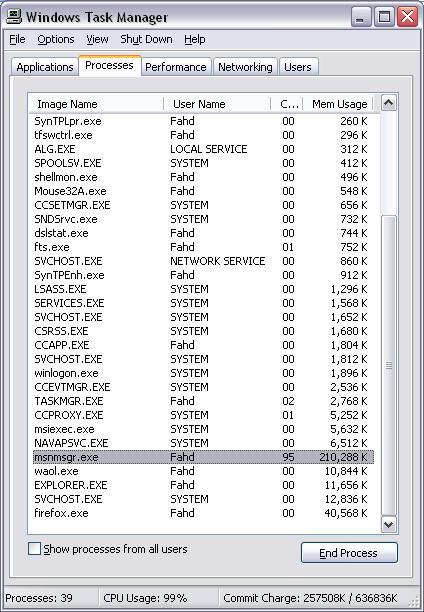
The first thing I noticed was how slow it is. I decided to check its memory and CPU usage and so brought up the Task Manager. Here is what I saw:

Fig 1. Task Manager showing Windows Live Messenger 8.0

Live Messenger is using 95% CPU, but more shocking is the fact that it is using a whopping 210 Megs of RAM!

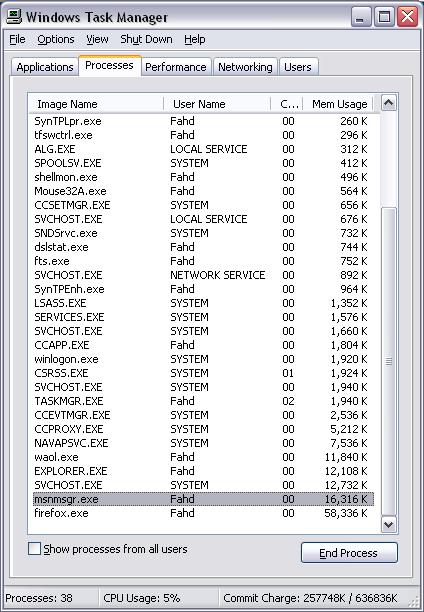
I have now uninstalled it and have reverted back to MSN Messenger 7.5. Just for comparison, here is a screenshot of my Task Manager now, which looks much better:

Fig 2. Task Manager showing MSN Messenger 7.5

Needless to say, I'm going to be sticking to 7.5 till Microsoft fixes this leak.

Monday, August 28, 2006

Why Choose Windows?

  • Choose Bill Gates as your Dark Lord.
  • Choose service packs every three months to fix the 800 bugs introduced in the last one.
  • Choose an assload of obscure shovelware apps and shitty games and an Office suite that needs 18 gigs to write a letter.
  • Choose selling your soul to piracy.
  • Choose cheap ass parts from Korea.
  • Choose Winamp skins that look like snot.
  • Choose the blue screen of death.
  • Choose hordes of 133t skript kiddiez clogging the internet with their shit.
  • Choose running Norton and ZoneAlarm constantly to fight off the newest viruses.
  • Choose using letters for drives while wondering where the hell B:\ went.
  • Choose Steve Balmer jumping across the stage like a gorilla in heat.
  • Choose a damn crapshoot every time you install a program or add a peripheral.
  • Choose Microsoft squashing competitors and finding new ways to take over the world.
  • Choose sitting on your fat ass, mocking Linux users in chatrooms and forums, drowning in your own bile about Intel and AMD who think stealing from others is "innovation".
  • Choose your future.
Choose Windows.